RGB 颜色对照表
1
2
3
4
5
6
7
8
9
| #include <QPushButton>
QPushButton *bt;
this->setFixedSize(640, 480);
bt = new QPushButton("登录", this);
bt->setGeometry(300, 400, 100, 50);
bt->setStyleSheet("QPushButton{background-color:#63B8FF;};");
|
# 1.QT 工程示例
基础模板(QWidget/QDialog/QMainWindow)
(1) 信号
当信号被发射时,QT 代码将回调与其相连接的槽函数
信号将由元对象处理 moc 自动翻译成 C 代码
信号的声明不在 cpp 文件中,而在头文件中
(2) 槽函数
槽函数是普通的 C 成员函数,可以被正常调用
槽函数可以有返回值,也可以没有
槽函数的访问权限三种: public slots、 private slots 和 protected
slots。槽函数的存取权限决定了谁能够与其相关联
##QT 程序的打包
1. 找到 filename.exe 文件
2.QT 编译器 windeployqt.exe filename.exe
本方法打包程序较大,包含.dll 等库文件,详见 8.4
# 2.QT 组件
# 2.1QT 对话框
- 文件对话框 (QFile Dialog)
- 消息对话框 (QMessageBox)
- 输入对话框 (QInputDialog)
- 颜色对话框 (QColorDialog)
- 字体对话框 (QFontDialog)
# 2.1.1 文件对话框
#1
2
3
4
5
6
7
8
9
10
|
connect(bt_filename, &QPushButton::clicked, [&](){
QStringList filenames = QFileDialog::getOpenFileNames(this, "打开图片", ".", "Images (*.png *.xpm *.jpg)");
for(int i=0; i<filenames.length(); i++)
te_test->append(filenames[i]);
});
|
# 2.1.2 颜色对话框
#1
2
3
4
5
|
connect(bt_getcolor, &QPushButton::clicked, [&](){
QColor color = QColorDialog::getColor();
te_test->setTextColor(color);
});
|
# 2.1.3 字体对话框
#1
2
3
4
5
6
7
8
|
connect(bt_getfont, &QPushButton::clicked, [&](){
bool ok;
QFont font = QFontDialog::getFont(&ok);
if(ok)
te_test->setCurrentFont(font);
});
|
# 2.1.4 输入对话框
#1
2
3
4
5
|
connect(bt_getinput, &QPushButton::clicked, [&](){
QString str = QInputDialog::getText(this, "xxxx", "yyyy");
te_test->setText(str);
});
|
# 2.1.5 消息对话框
1
2
3
4
|
connect(bt_message, &QPushButton::clicked, [&](){
QMessageBox::warning(this, "xxxx", "yyyyyyy", QMessageBox::Open, QMessageBox::Apply);
});
|
# 2.1.6 错误消息对话框
#1
2
3
4
5
|
connect(bt_error, &QPushButton::clicked, [&](){
QErrorMessage *x;
x->showMessage("xxxxxxxxxxxxxxxxxxx");
});
|
# 2.1.7 进度条
#1
2
3
4
5
6
|
connect(bt_progress, &QPushButton::clicked, [&](){
QProgressDialog x;
x.setValue(88);
x.exec();
});
|
# 2.2QT 内置组件
1
| connect(ui->pushButton,SIGNAL(clicked()),ui->lineEdit,SLOT(clea()));
|
###2.2.2 标签 QLabel
1
2
3
4
5
6
7
8
9
10
| #include <QDebug>
ui->labelPic->setText("ssssss");
qDebug() << ui->labelPic->text();
QPixmap pixmap;
pixmap.load("D:/Personal/Embedded/QT/210901/211103/label2.jpg");
ui->labelPic->setPixmap(pixmap);
ui->labelPic->setScaledContents(true);
|
1
2
3
4
5
6
7
8
9
10
11
12
13
14
15
16
17
18
| void Widget::on_radioButton_clicked()
{
if(ui->radioButton->isChecked())
{
ui->radioButton_2->setChecked(false);
}
else
ui->radioButton_2->setChecked(true);
}
void Widget::on_radioButton_2_clicked()
{
if(ui->radioButton_2->isChecked())
{
ui->radioButton->setChecked(false);
}
else
ui->radioButton->setChecked(true);
}
|
# 2.2.4 复选框 QCheckBox
1
2
3
4
5
6
7
8
9
| #include <QDebug>
void Widget::on_checkBox_stateChanged(int arg1)
{
qDebug() << arg1;
}
void Widget::on_checkBox_2_stateChanged(int arg1)
{
qDebug() << arg1;
}
|
1
2
3
4
5
6
7
8
9
10
11
12
13
14
15
16
17
18
19
20
21
22
23
|
ui->listWidget->addItem("BBB");
ui->listWidget->addItem(new QListWidgetItem(QIcon("D:/Personal/Embedded/QT/210901/211103/薯条.png"),"AAA"));
ui->listWidget->sortItems();
void Widget::on_pushButtonRight_clicked()
{
QListWidgetItem *item ;
item = ui->listWidget->takeItem(ui->listWidget->currentRow());
ui->listWidget_2->addItem(item);
ui->listWidget->sortItems();
ui->listWidget_2->sortItems();
}
void Widget::on_pushButtonLeft_clicked()
{
QListWidgetItem *item ;
item = ui->listWidget_2->takeItem(ui->listWidget_2->currentRow());
ui->listWidget->addItem(item);
ui->listWidget->sortItems();
ui->listWidget_2->sortItems();
}
|
# 2.2.6 组合框 ComboBox
1
2
3
|
ui->comboBox->addItem("北京");
ui->comboBox->addItem(QIcon(":/images/上海.png"),"上海");
|
# 2.2.7 自旋框 QSpinBox
1
2
3
4
5
6
7
8
9
10
11
12
|
ui->spinBox->setValue(5);
void Widget::on_spinBox_valueChanged(const QString &arg1)
{
qDebug() << arg1;
}
void Widget::on_spinBox_valueChanged(int arg1)
{
qDebug() << arg1;
}
|
# 2.2.8 滑动条 SLider
1
2
3
4
5
6
7
8
9
10
11
|
ui->horizontalSlider->setValue(25);
void Widget::on_horizontalSlider_sliderMoved(int position)
{
qDebug() << position;
}
void Widget::on_horizontalSlider_valueChanged(int value)
{
qDebug() << value;
ui->progressBar->setValue(value);
}
|
# 2.2.9 进度条 QProgressBox
1
2
3
4
5
6
|
ui->progressBar->setValue(25);
void Widget::on_progressBar_valueChanged(int value)
{
}
|
# 2.2.10 行编辑器 QLineEdit
1
2
3
4
5
|
ui->lineEditName->setText("xiaoming");
ui->lineEditPasswd->setEchoMode(QLineEdit::Password);
ui->lineEditPasswd->setMaxLength(8);
qDebug() << ui->lineEditName->text();
|
# 2.2.11 定时器 QTimer
1
2
3
4
5
6
7
8
| #include <QTimer>
QTimer *t = new QTimer;
connect(t, &QTimer::timeout, [&](){
static int x = 0;
pbr_schedule->setValue(x++);
lcd_time->display(x);
});
t->start(100);
|
# 3. 主窗口
基础窗口部件主要用于自定义窗
QWidge 堤提供一个基础窗口,窗口并没有任何图形部件。通过指定图形部件的父对象来把图形部件放上基础窗口,或是通过自动布局工具把图形部件放上基础窗口。
# 3.2 主窗口 QMainWindow
QMain Window 类提供了一个典型应用程序的主窗口框架,对于小屏幕设备使用 Q 图形设计器定义标准 Qwidget 模板比使用主窗口类更好一些典型模板包含有菜单栏 QMenuBar, 工具栏 TOolbAr 和状态栏 STatus Bar。
# 3.3 菜单
#1
2
3
4
5
6
7
8
9
10
11
12
13
14
15
16
17
18
19
20
21
22
23
24
25
26
27
28
29
30
31
32
33
34
35
36
| QAction *actopen = new QAction("打开");
actopen->setIcon(QIcon(":/img/open.png"));
actopen->setShortcut(QKeySequence("Ctrl+O"));
QMenu *fileMenu = menuBar()->addMenu("&File");
fileMenu->addAction(actnew);
fileMenu->addAction(actopen);
void openfile();
#include <QFileDialog>
connect(actopen, SIGNAL(triggered(bool)), this, SLOT(openfile()));
void MainWindow::openfile()
{
QFileDialog::getOpenFileName();
}
QAction *actnew = new QAction("新建");
actnew->setIcon(QIcon(":/img/new.png"));
actnew->setShortcut(QKeySequence("Ctrl+N"));
QAction *actopen = new QAction("打开");
actopen->setIcon(QIcon(":/img/open.png"));
actopen->setShortcut(QKeySequence("Ctrl+O"));
QAction *actsave = new QAction("保存");
actsave->setIcon(QIcon(":/img/save.png"));
actsave->setShortcut(QKeySequence("Ctrl+S"));
QAction *actsaveas = new QAction("另存为");
actsaveas->setIcon(QIcon(":/img/saveas.png"));
actsaveas->setShortcut(QKeySequence("Ctrl+Shift+S"));
QMenu *fileMenu = menuBar()->addMenu("&File");
fileMenu->addAction(actnew);
fileMenu->addAction(actopen);
fileMenu->addAction(actsave);
fileMenu->addAction(actsaveas);
|
# 3.4 工具栏
#1
2
3
4
5
6
7
8
9
10
11
12
13
| #include <QToolBar>
#include <QFontComboBox>
QToolBar *filetool = addToolBar("文件");
filetool->addAction(actnew);
filetool->addAction(actopen);
QToolBar *edittool = addToolBar("编辑");
edittool->addAction(actcopy);
edittool->addAction(actpaste);
QToolBar *settool = addToolBar("设置");
QFontComboBox *fc = new QFontComboBox;
settool->addWidget(fc);
connect(actopen, SIGNAL(triggered(bool)), this, SLOT(openfile()));
|
# 3.5 状态栏
- 中央部件:
1
2
3
4
5
6
7
| #include <QTextEdit>
te = new QTextEdit;
te->setMinimumSize(640, 480);
this->setCentralWidget(te);
connect(actopen, SIGNAL(triggered(bool)), this, SLOT(openfile()));
|
- 状态栏
1
2
3
4
5
| #include <QLabel>
QLabel *lb = new QLabel("1.txt");
this->statusBar()->addWidget(lb);
connect(actopen, SIGNAL(triggered(bool)), this, SLOT(openfile()));
|
- 操作文件
1
2
3
4
5
6
7
8
9
10
11
| #include <QFile>
void openfile();
void MainWindow::openfile()
{
QString filename = QFileDialog::getOpenFileName();
QFile f(filename);
f.open(QIODevice::ReadOnly);
QByteArray buf = f.readAll();
f.close();
te->setText(buf);
}
|
# 4. 事件和图形系统
# 4.1 事件处理
# 4.1.1 处理鼠标事件
#1
2
3
4
5
6
7
8
9
10
11
12
13
14
15
16
17
18
19
20
21
22
| public:
void mousePressEvent(QMouseEvent *event);
#include "QMouseEvent"
void Widget::mousePressEvent(QMouseEvent *event)
{
qDebug () << "mouse pos" << event->pos();
qDebug () << "mouse button" << event->button();
}
void mousePressEvent(QMouseEvent *event);
void mouseDoubleClickEvent(QMouseEvent *event);
void mouseReleaseEvent(QMouseEvent *event);
void mouseMoveEvent(QMouseEvent *event);
|
# 4.1.2 滚轮事件
#1
2
3
4
5
6
7
8
|
void wheelEvent(QWheelEvent *event);
#include "QWheelEvent"
void Widget::wheelEvent(QWheelEvent *event)
{
qDebug () << event->angleDelta();
}
|
# 4.1.3 键盘事件
#1
2
3
4
5
6
7
8
9
10
11
12
13
14
15
|
void keyPressEvent(QKeyEvent *event);
void keyReleaseEvent(QKeyEvent *event);
#include "QKeyEvent"
void Widget::keyPressEvent(QKeyEvent *event)
{
qDebug() << event->key();
}
void Widget::keyReleaseEvent(QKeyEvent *event)
{
qDebug() << event->key();
}
|
# 4.1.4 窗口关闭事件
#1
2
3
4
5
6
7
|
void closeEvent(QCloseEvent *event);
void Widget::closeEvent(QCloseEvent *event)
{
qDebug()<<"xxxxxxxxxxxxxxxxxxx";
}
|
# 4.2 绘图基础
Qt 的 2D 绘图系统主要是由于三个基本的类构成: QPainter、QPaintEngine、QPaintDevice。
# 4.2.1 绘图事件
#1
2
3
4
5
6
7
8
9
10
11
12
13
14
15
16
17
18
19
20
21
22
23
24
25
26
27
|
void paintEvent(QPaintEvent *event);
void Widget::paintEvent(QPaintEvent *event)
{
qDebug()<<"ddddddddddddddddddddd"<<pos<<posend;
}
#include <QPainter>
QPoint pos;
QPoint posend;
QPainter p(this);
QPen pen;
p.setPen(pen);
p.drawPoint(pos);
p.drawLine(pos,posend);
p.drawEllipse(posend, a, b);
p.drawRect(posend.x(), posend.y(), 300, 200);
QBrush brush;
brush.setColor(Qt::red);
brush.setStyle(Qt::DiagCrossPattern);
p.setBrush(brush);
p.drawPixmap(posend.x(), posend.y(), 100, 100, QPixmap("C:\\Users\\29507\\Desktop\\car.png"));
|
# 4.3 坐标系统
# 4.3.1 画家动作
#1
2
3
4
| QPainter p(this);
p.translate(100, 100);
p.scale(0.5, 0.5);
p.drawEllipse(QPoint(0, 0), 100, 100);
|
# 4.3.2 双缓冲绘图
# <!-- 双缓冲绘图是指先在内存创建对象,将图绘制在对象然后在拷贝这个对象到屏幕上,大大缩短了绘图时间 --->
1
2
3
4
5
6
7
8
9
| QPainter p2(this);
p2.drawPixmap(0, 0, 640, 480, *pix);
p2.drawRect(QRect(posstart, posend));
QPainter p1(pix);
if(!ismoving){
p1.drawRect(QRect(posstart, posend));
}
|
# 5. 文件处理
# 5.1QFile
# ![]()
1
2
3
4
5
6
7
8
9
10
11
12
13
|
bool QFile:: open(OpenMode mode)
bool QFile:: open (FIle fh, OpenMode mode, FileHandleFlags handleFlags = DontCloseHandle);
bool QFile:: open (int fd, OpenMode mode, FileHandleFlags handleFlags = DontCloseHandle);
void FIle:: close ();
QFile:: FIle(const AString& name);
QFile: QFile(const Astring name, QObject parent);
void QFile:: setFileName (const String name);
qint64 read(char data, qint64 maxSize);
qint64 write (const char data, qint64 maxSize);
|
# 5.2 文件的读写
#1
2
3
4
5
6
7
8
9
10
11
12
13
14
15
16
17
18
19
20
21
22
23
24
| #include <QFile>
void Widget::on_pushButton_2_clicked()
{
QFile file("text.txt");
file.open(QFile::WriteOnly | QFile::Truncate);
QByteArray data = ui->lineEdit->text().toLatin1();
file.write(data);
file.close();
}
void Widget::on_pushButton_clicked()
{
QFile file("test.txt");
file.open(QFile::ReadOnly);
QByteArray data = file.readAll();
ui->lineEdit->setText(data);
file.close();
}
|
# 5.3 文本流
#1
2
3
4
5
6
7
8
9
10
11
12
13
14
15
16
17
18
19
20
21
22
23
24
25
| #include <QTextStream>
void Widget::on_pushButton_6_clicked()
{
QFile file("test.txt");
file.open(QFile::WriteOnly | QFile::Truncate);
QTextStream ts(&file);
ts << ui->lineEdit->text();
file.close();
}
void Widget::on_pushButton_5_clicked()
{
QFile file("test.txt");
file.open(QFile::ReadOnly);
QString str;
QTextStream ts(&file);
ts >> str;
ui->lineEdit->setText(str);
file.close();
}
|
# 5.4 数据流
1
2
3
4
5
6
7
8
9
10
11
12
13
14
15
16
17
18
19
20
21
22
23
24
| #include <QDataStream>
void Widget::on_pushButton_8_clicked()
{
QFile file("test.dat");
file.open(QFile::WriteOnly | QFile::Truncate);
QDataStream ds(&file);
ds << ui->spinBox->value();
file.close();
}
void Widget::on_pushButton_7_clicked()
{
QFile file("test.dat");
file.open(QFile::ReadOnly);
int val;
QDataStream ds(&file);
ds >> val;
ui->spinBox->setValue(val);
file.close();
}
|
#1
2
3
4
5
6
7
8
| 说明:
1.QTextStream只能操作文本文件
QDataStream:既可以操作文本文件,也可以数据流文件
2.QDataStream不要与read/write混合使用
QDataStream:遵循Qt的标准字节序
QFile的read/write:遵循的是主机字节序大端序、大端序
3.QDataStream: 自动根据类型匹配文件内容
QTextStream: 不会根据类型匹配文件内容
|
# 5.5 临时文件
#1
2
3
4
5
| bool QTemporary File::open();
QTemporaryFile QTemporaryFile::createNativeFile(QFile & file);
|
# 5.6 目录
#1
2
3
4
5
6
7
8
9
10
11
12
13
14
15
16
17
18
19
20
21
| #include <QDir>
#include <QFileDialog>
void Widget::on_pushButton_clicked()
{
QString dirPath = QFileDialog::getExistingDirectory(this,
"Open Dir",
QDir::currentPath());
if(dirPath.isEmpty())
return;
ui->lineEdit->setText(dirPath);
ui->textEdit->clear();
QDir dir(dirPath);
QFileInfoList fileInfoList = dir.entryInfoList(QDir::Files);
for(int i=0; i<fileInfoList.size(); i++)
{
QFileInfo fileInfo = fileInfoList.at(i);
ui->textEdit->append(fileInfo.absoluteFilePath());
ui->textEdit->append(QString::number(fileInfo.size()));
}
}
|
# 5.7 文件信息 QFileInfo
#1
2
3
4
5
6
7
| QFileInfo提供了与系统无关的文件信息。
可以得到绝对、相对、标准路径名称或文件名称文件名、扩展名及名称全称
可以得到文件的类型: 目录、符号链接
可以得到文件的权限
可以得到文件的日期
可以得到文件的大小
可以得到文件的隐藏属性
|
# 5.8 文件检测
#1
2
3
4
5
6
7
8
9
10
11
|
bool QFileSystemWatcher:: addPath(const QString path);
QStringList QFileSystemWatcher:: addPaths(const QStringlist paths);
bool QFileSystemWatcher:: removePath (const AString& path);
QStringList QFileSystemWatcher:: removePaths(const QStringlist paths);
void directory Changed (const AString path);
void file Changed(const AString& path);
|
# 6. 线程和同步互斥
# 6.1 线程 QThread
# 一般的,系统存在两种耗时仼务,CPU 密集操作及 I/O 操作。主流的操作系统都引入了线程的概念。在 GUI 编程中,前台界面操作和后台耗时仼务如果在一个线程中,将使得 GU 面响应缓慢,类似于卡死现象。
Qt 中管理线程的是 QThread:
1
2
3
4
5
6
7
8
9
10
11
12
13
14
15
16
17
18
19
20
21
22
23
24
25
26
27
28
29
| class My Thread: public QThread
{
Q_OBJECT
...
protected:
void run();
...
};
void MyThread::run(){ ... }
void QThread:: run ()
void QThread::start(Priority priority = InheritPriority)
enum Priority{IdlePriority, LowestPriority, LowPriority, NormalPriority , ... , InheritPriority}
void QThread::exit(int returnCode=0)
void QThread::terminate()
void QThread::setStackSize (uint stackSize)
bool QThread::wait(unsigned long time = ULONG_MAX)
void msleep(unsigned long msecs)
void sleep (unsigned long secs)
void usleep(unsigned long usecs)
int QThread::exec;
|
# 6.2 线程同步互斥
竞态:多个执行序列竞争同一个资源就是竞态,譬如:两个进程同时读写同一个文件;两个进程同时读写同一个设备;两个线程同时操作一个全局数据;等等.
竞态产生的原因:
- 并发
主流操作系统都支持多进程、多线程,多个进程、多个线程在并行运行. - 抢占
当一个执行序列正在运行时,被别执行序列打断,就是抢占。譬如:中断、信号、定时器,等等.
阻止竞态的办法:
设计时候避免使用全局资源
使用同步互斥技术保护全局资源
同步互斥
Qt 关于阻止线程竞态提供了互斥锁、信号量、条件变量等技术
死锁:
所谓死锁就是指多个执行序列为竞争资源而相互等待,并不能正常执行下去的情况
锁粒度
临界区是指在同步互斥技术保护的区域,临界区的范围就是所谓的锁粒度
# 6.2.1 互斥锁
# Qt 提供了互斥锁: QMutex、 QMutexLocker
QMUtex 用于线程间实现互斥操作。
1
2
3
4
5
6
7
8
9
| 加锁
阻塞版: void QMutex: lock
非阻塞/超时版: bool QMutex: tryLock
解锁
void QMutex:: unlock
锁类型
enum RecursionMode { Recursive, NonRecursive}
判断是否为递归锁
bool QMutex: isRecursive
|
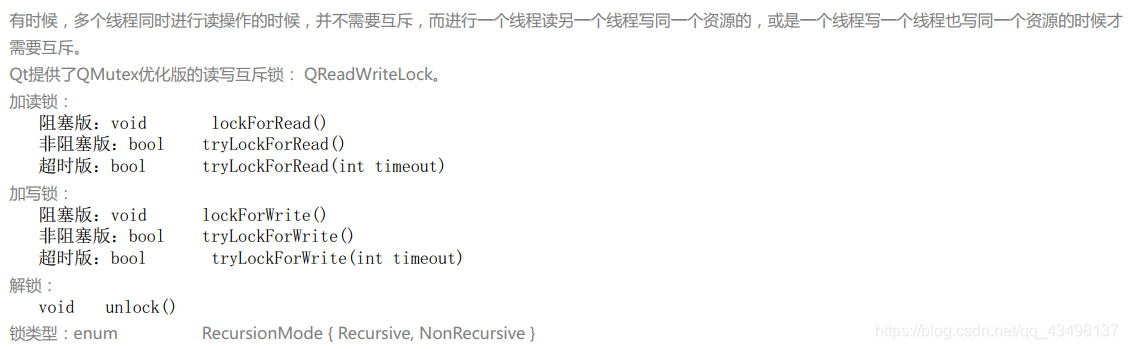
# 6.2.2 读写锁 QReadWriteLock
![]()
# https://www.fearlazy.com/index.php/post/99.html
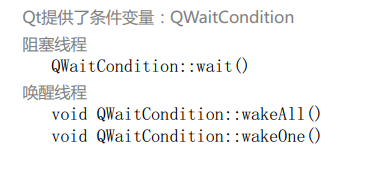
# 6.2.3 条件变量
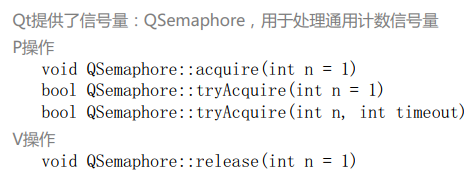
# 6.2.4 信号量
# 7. 进程和进程间通讯
# 7.1 进程
#1
2
3
4
5
6
7
8
| Q提供了 QProcess:创建一个新进程
创建新进程
void QProcess:: start();
int QProcess:: execute ();
bool QProcess:: startDetached ();
杀死当前进程
void QProcess:: kill();
void QProcess:: terminate ();
|
# 7.2Qt 网络编程
#1
2
3
4
5
6
7
8
9
10
|
#include <QtNetwork>
QT += network
流式: QTcpSocket
数据报: QUdpSocket
QNetworkRequest, QNetworkReply, QNetworkAccess Manager.
|
<!-- 这段没学,先学网络再理解 -->
# 8. 补充
# 8.1 应用程序图标
- 方法一:
将 filename.ico 文件放到路径下,在项目文件中加上 RC_ICONS=filename.ico - 方法二:
项目路径下新建 filename.txt 文件,文件内容:IDI_ICON1 ICON DISCARDABLE "filename.ico"
重命名为 filename.rc 文件
项目文件中加上 RC_FILE=filename.rc
# 8.2QSS 美化
<!-- UI 可以直接改,代码需要学一下 -->
# QSS 基础
# 8.3 应用程序打包
步骤:
- 复制 name.exe 文件进文件夹
- 复制当前路径
- 打开 QT 命令行进入文件夹路径
- 输入 windeployqt.exe name.exe
多文件打包成一个可执行文件
利用 Enigma Virtual Box 实现
步骤:
- 打开.exe 文件
- 添加项目文件夹
- 执行